
AI Side Chat Panel
The AI Side Chat Panel provides contextual AI assistance and conversation history while keeping users in their current workflow.
Overview
Code
The AI Side Chat Panel stays docked alongside the primary workspace, allowing users to reference page content, object details, and workflow context while interacting with AI. Use it for quick, in-context help and short multi-turn conversations. When tasks become more exploratory, complex, or content-heavy, transition users to a dedicated AI experience.
Anatomy
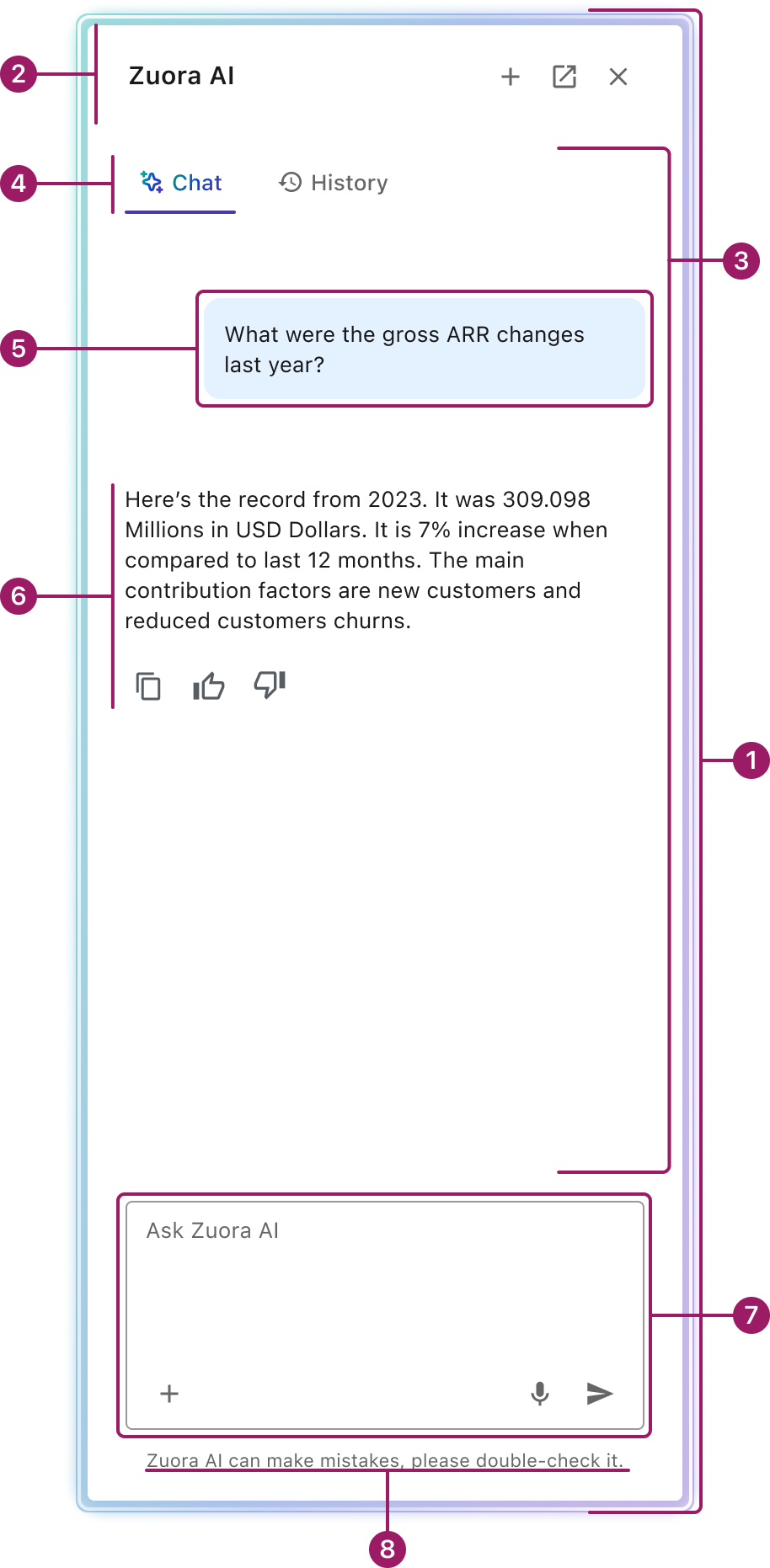
- Side chat panel container
- Side chat panel header
- Conversation lists
- Tab group
- User Message
- AI Message
- Input
- AI Disclaimer
Usage Guidelines
Use When
- Users need quick answers, explanations, or guidance related to the page they are viewing.
- Users need to reference page content, object details, or selections while interacting with AI.
- The task requires brief back-and-forth interactions while the primary work remains within the underlying page.
- AI assistance supports the current workflow rather than becoming the primary destination.
- Users may need to transition from quick assistance to a more comprehensive AI experience
Best Practices
- Use the panel to support the current workflow rather than replace the primary experience.
- Clearly communicate the page, object, filters, or selections available to the AI.
- Require user confirmation before applying AI-generated actions or changes.
- Provide clear fallback states when AI cannot fulfill a request or complete a task.
- Consider using the AI Full View pattern when tasks become complex, exploratory, or require extensive content creation that is not suited for a narrow panel.
Crafted with ❤️ at Zuora
© 2026 Zuora Inc.
AI Side Chat Panel
The AI Side Chat Panel provides contextual AI assistance and conversation history while keeping users in their current workflow.
Overview
Code
The AI Side Chat Panel stays docked alongside the primary workspace, allowing users to reference page content, object details, and workflow context while interacting with AI. Use it for quick, in-context help and short multi-turn conversations. When tasks become more exploratory, complex, or content-heavy, transition users to a dedicated AI experience.
Anatomy
- Side chat panel container
- Side chat panel header
- Conversation lists
- Tab group
- User Message
- AI Message
- Input
- AI Disclaimer
Usage Guidelines
Use When
- Users need quick answers, explanations, or guidance related to the page they are viewing.
- Users need to reference page content, object details, or selections while interacting with AI.
- The task requires brief back-and-forth interactions while the primary work remains within the underlying page.
- AI assistance supports the current workflow rather than becoming the primary destination.
- Users may need to transition from quick assistance to a more comprehensive AI experience
Best Practices
- Use the panel to support the current workflow rather than replace the primary experience.
- Clearly communicate the page, object, filters, or selections available to the AI.
- Require user confirmation before applying AI-generated actions or changes.
- Provide clear fallback states when AI cannot fulfill a request or complete a task.
- Consider using the AI Full View pattern when tasks become complex, exploratory, or require extensive content creation that is not suited for a narrow panel.
Crafted with ❤️ at Zuora
© 2026 Zuora Inc.
AI Side Chat Panel
The AI Side Chat Panel provides contextual AI assistance and conversation history while keeping users in their current workflow.
Overview
Code
The AI Side Chat Panel stays docked alongside the primary workspace, allowing users to reference page content, object details, and workflow context while interacting with AI. Use it for quick, in-context help and short multi-turn conversations. When tasks become more exploratory, complex, or content-heavy, transition users to a dedicated AI experience.
Anatomy
- Side chat panel container
- Side chat panel header
- Conversation lists
- Tab group
- User Message
- AI Message
- Input
- AI Disclaimer
Usage Guidelines
Use When
- Users need quick answers, explanations, or guidance related to the page they are viewing.
- Users need to reference page content, object details, or selections while interacting with AI.
- The task requires brief back-and-forth interactions while the primary work remains within the underlying page.
- AI assistance supports the current workflow rather than becoming the primary destination.
- Users may need to transition from quick assistance to a more comprehensive AI experience
Best Practices
- Use the panel to support the current workflow rather than replace the primary experience.
- Clearly communicate the page, object, filters, or selections available to the AI.
- Require user confirmation before applying AI-generated actions or changes.
- Provide clear fallback states when AI cannot fulfill a request or complete a task.
- Consider using the AI Full View pattern when tasks become complex, exploratory, or require extensive content creation that is not suited for a narrow panel.
Crafted with ❤️ at Zuora
© 2026 Zuora Inc.
On This Page
AI Side Chat Panel
The AI Side Chat Panel provides contextual AI assistance and conversation history while keeping users in their current workflow.
Overview
Code
The AI Side Chat Panel stays docked alongside the primary workspace, allowing users to reference page content, object details, and workflow context while interacting with AI. Use it for quick, in-context help and short multi-turn conversations. When tasks become more exploratory, complex, or content-heavy, transition users to a dedicated AI experience.
Anatomy
- Side chat panel container
- Side chat panel header
- Conversation lists
- Tab group
- User Message
- AI Message
- Input
- AI Disclaimer
Usage Guidelines
Use When
- Users need quick answers, explanations, or guidance related to the page they are viewing.
- Users need to reference page content, object details, or selections while interacting with AI.
- The task requires brief back-and-forth interactions while the primary work remains within the underlying page.
- AI assistance supports the current workflow rather than becoming the primary destination.
- Users may need to transition from quick assistance to a more comprehensive AI experience
Best Practices
- Use the panel to support the current workflow rather than replace the primary experience.
- Clearly communicate the page, object, filters, or selections available to the AI.
- Require user confirmation before applying AI-generated actions or changes.
- Provide clear fallback states when AI cannot fulfill a request or complete a task.
- Consider using the AI Full View pattern when tasks become complex, exploratory, or require extensive content creation that is not suited for a narrow panel.
Crafted with ❤️ at Zuora
© 2026 Zuora Inc.
On This Page
AI Side Chat Panel
The AI Side Chat Panel provides contextual AI assistance and conversation history while keeping users in their current workflow.
Overview
Code
The AI Side Chat Panel stays docked alongside the primary workspace, allowing users to reference page content, object details, and workflow context while interacting with AI. Use it for quick, in-context help and short multi-turn conversations. When tasks become more exploratory, complex, or content-heavy, transition users to a dedicated AI experience.
Anatomy
- Side chat panel container
- Side chat panel header
- Conversation lists
- Tab group
- User Message
- AI Message
- Input
- AI Disclaimer
Usage Guidelines
Use When
- Users need quick answers, explanations, or guidance related to the page they are viewing.
- Users need to reference page content, object details, or selections while interacting with AI.
- The task requires brief back-and-forth interactions while the primary work remains within the underlying page.
- AI assistance supports the current workflow rather than becoming the primary destination.
- Users may need to transition from quick assistance to a more comprehensive AI experience
Best Practices
- Use the panel to support the current workflow rather than replace the primary experience.
- Clearly communicate the page, object, filters, or selections available to the AI.
- Require user confirmation before applying AI-generated actions or changes.
- Provide clear fallback states when AI cannot fulfill a request or complete a task.
- Consider using the AI Full View pattern when tasks become complex, exploratory, or require extensive content creation that is not suited for a narrow panel.
Crafted with ❤️ at Zuora
© 2026 Zuora Inc.