
AI Info Box
The AI Info Box is an informational alert that communicates when AI-generated content is available. Use it to highlight updates, provide context, or notify users of AI-driven insights across one or multiple sections on a page.
Overview
Code
Anatomy
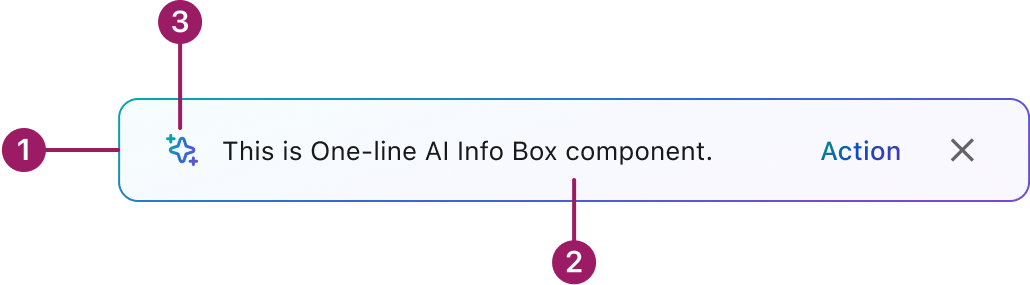
- AI border
- AI gradient
- AI Spark
The AI Info Box component inherits its functionality and guidelines from the core Occam Alert.
Usage Guidelines
Use When
- Notifying that AI-powered content is available across multiple sections on a page.
- Making users aware that content was generated by Zuora AI.
- Providing context or updates related to AI activity, without embedding the generated content itself.
- Highlighting important system-level AI information that complements but does not replace Cards.
- Differentiating AI notifications from other containers to avoid confusion with Cards.
Best Practices
- Use clear, concise messaging to indicate AI involvement (e.g., “Generated by Zuora AI”).
- Keep Info Box content short and informative; avoid embedding full AI outputs.
- Place Info Boxes near the related sections but ensure they remain visually distinct from Cards.
- Do not substitute Cards with Info Boxes — use Cards to display generated content, and Info Boxes to provide awareness or status.
- Limit usage to moments where AI activity needs to be surfaced; avoid overusing Info Boxes to prevent notification fatigue.
Crafted with ❤️ at Zuora
© 2025 Zuora Inc.
AI Info Box
The AI Info Box is an informational alert that communicates when AI-generated content is available. Use it to highlight updates, provide context, or notify users of AI-driven insights across one or multiple sections on a page.
Overview
Code
Anatomy
- AI border
- AI gradient
- AI Spark
The AI Info Box component inherits its functionality and guidelines from the core Occam Alert.
Usage Guidelines
Use When
- Notifying that AI-powered content is available across multiple sections on a page.
- Making users aware that content was generated by Zuora AI.
- Providing context or updates related to AI activity, without embedding the generated content itself.
- Highlighting important system-level AI information that complements but does not replace Cards.
- Differentiating AI notifications from other containers to avoid confusion with Cards.
Best Practices
- Use clear, concise messaging to indicate AI involvement (e.g., “Generated by Zuora AI”).
- Keep Info Box content short and informative; avoid embedding full AI outputs.
- Place Info Boxes near the related sections but ensure they remain visually distinct from Cards.
- Do not substitute Cards with Info Boxes — use Cards to display generated content, and Info Boxes to provide awareness or status.
- Limit usage to moments where AI activity needs to be surfaced; avoid overusing Info Boxes to prevent notification fatigue.
Crafted with ❤️ at Zuora
© 2025 Zuora Inc.
AI Info Box
The AI Info Box is an informational alert that communicates when AI-generated content is available. Use it to highlight updates, provide context, or notify users of AI-driven insights across one or multiple sections on a page.
Overview
Code
Anatomy
- AI border
- AI gradient
- AI Spark
The AI Info Box component inherits its functionality and guidelines from the core Occam Alert.
Usage Guidelines
Use When
- Notifying that AI-powered content is available across multiple sections on a page.
- Making users aware that content was generated by Zuora AI.
- Providing context or updates related to AI activity, without embedding the generated content itself.
- Highlighting important system-level AI information that complements but does not replace Cards.
- Differentiating AI notifications from other containers to avoid confusion with Cards.
Best Practices
- Use clear, concise messaging to indicate AI involvement (e.g., “Generated by Zuora AI”).
- Keep Info Box content short and informative; avoid embedding full AI outputs.
- Place Info Boxes near the related sections but ensure they remain visually distinct from Cards.
- Do not substitute Cards with Info Boxes — use Cards to display generated content, and Info Boxes to provide awareness or status.
- Limit usage to moments where AI activity needs to be surfaced; avoid overusing Info Boxes to prevent notification fatigue.
Crafted with ❤️ at Zuora
© 2025 Zuora Inc.
On This Page
AI Info Box
The AI Info Box is an informational alert that communicates when AI-generated content is available. Use it to highlight updates, provide context, or notify users of AI-driven insights across one or multiple sections on a page.
Overview
Code
Anatomy
- AI border
- AI gradient
- AI Spark
The AI Info Box component inherits its functionality and guidelines from the core Occam Alert.
Usage Guidelines
Use When
- Notifying that AI-powered content is available across multiple sections on a page.
- Making users aware that content was generated by Zuora AI.
- Providing context or updates related to AI activity, without embedding the generated content itself.
- Highlighting important system-level AI information that complements but does not replace Cards.
- Differentiating AI notifications from other containers to avoid confusion with Cards.
Best Practices
- Use clear, concise messaging to indicate AI involvement (e.g., “Generated by Zuora AI”).
- Keep Info Box content short and informative; avoid embedding full AI outputs.
- Place Info Boxes near the related sections but ensure they remain visually distinct from Cards.
- Do not substitute Cards with Info Boxes — use Cards to display generated content, and Info Boxes to provide awareness or status.
- Limit usage to moments where AI activity needs to be surfaced; avoid overusing Info Boxes to prevent notification fatigue.
Crafted with ❤️ at Zuora
© 2025 Zuora Inc.
On This Page
AI Info Box
The AI Info Box is an informational alert that communicates when AI-generated content is available. Use it to highlight updates, provide context, or notify users of AI-driven insights across one or multiple sections on a page.
Overview
Code
Anatomy
- AI border
- AI gradient
- AI Spark
The AI Info Box component inherits its functionality and guidelines from the core Occam Alert.
Usage Guidelines
Use When
- Notifying that AI-powered content is available across multiple sections on a page.
- Making users aware that content was generated by Zuora AI.
- Providing context or updates related to AI activity, without embedding the generated content itself.
- Highlighting important system-level AI information that complements but does not replace Cards.
- Differentiating AI notifications from other containers to avoid confusion with Cards.
Best Practices
- Use clear, concise messaging to indicate AI involvement (e.g., “Generated by Zuora AI”).
- Keep Info Box content short and informative; avoid embedding full AI outputs.
- Place Info Boxes near the related sections but ensure they remain visually distinct from Cards.
- Do not substitute Cards with Info Boxes — use Cards to display generated content, and Info Boxes to provide awareness or status.
- Limit usage to moments where AI activity needs to be surfaced; avoid overusing Info Boxes to prevent notification fatigue.
Crafted with ❤️ at Zuora
© 2025 Zuora Inc.